A WordPress plugin
Find out whobroke your site.
What Changed? for WordPress
Your site broke this morning. What Changed? shows every plugin, theme and WordPress update, from which version to which, and who did it. One screen. Newest first. The free version keeps your full history.
Free version has no limits · GPL-2.0-or-later
The problem
“It worked yesterday.”
WordPress changes itself all the time. A plugin updates overnight. A teammate switches a theme. A host patches core. Someone uploads a file over FTP. When the site breaks, nobody remembers what happened, and WordPress does not keep a list you can read.
So you guess. You turn plugins off one by one. You ask around. You lose an hour, or a day.
What Changed? keeps the list for you.
How it works
Three steps. Then it just records.
- 01
Activate it
It takes a snapshot of your plugins, themes and WordPress version. That is the starting point. Changes are recorded from then on.
- 02
Something breaks. Open the “What changed?” tab.
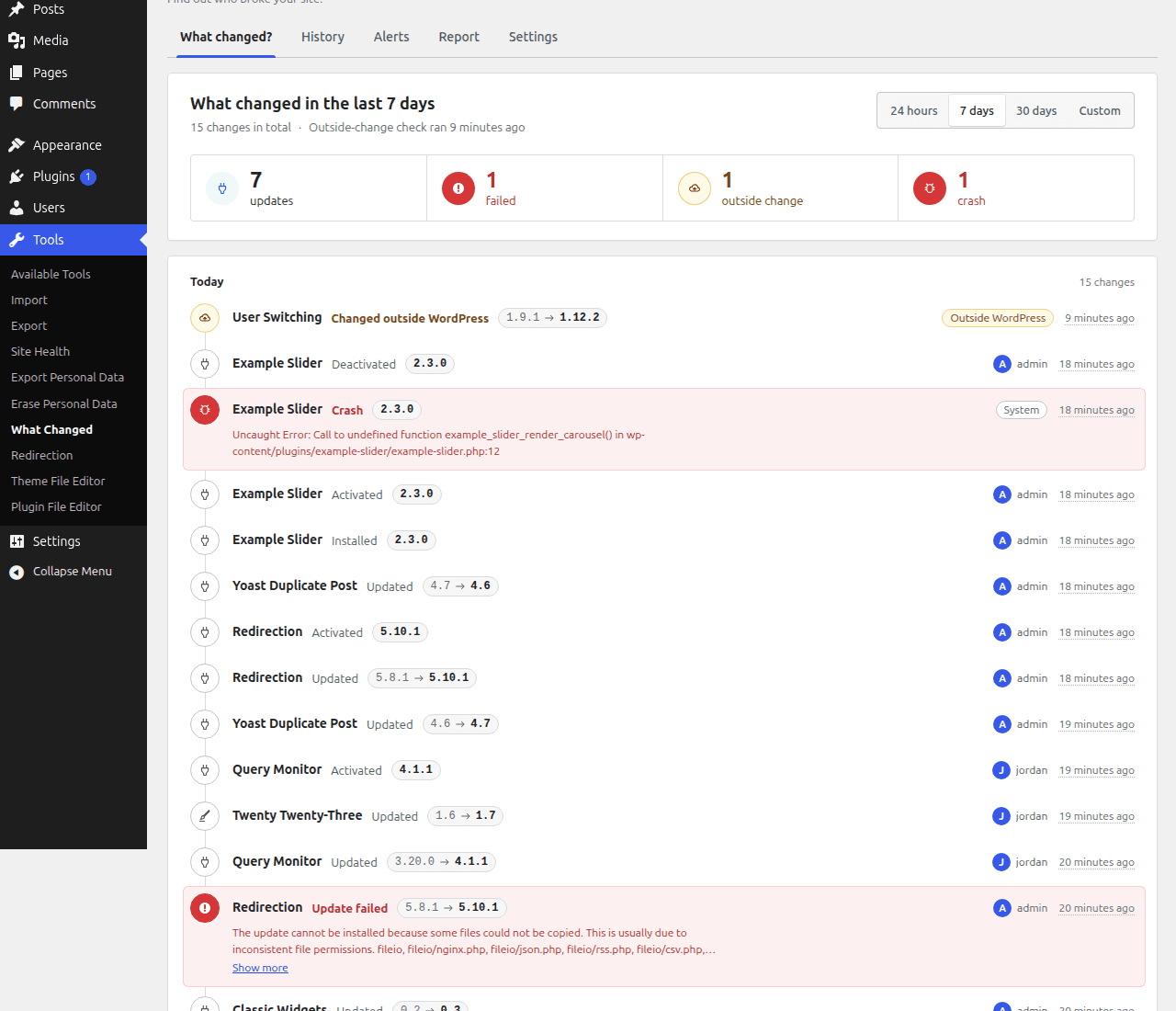
Pick the last 24 hours, 7 days, 30 days, or dates you choose. You see updates, failed updates, outside changes and crashes, newest first, with counts at the top.
- 03
Read the row
Each row says what changed, the from and to version, when, and who: a named user, an automatic update, WP-CLI, or “changed outside WordPress”. A failed update shows the error message in red.
Free vs Pro
The free version answers the question. Pro tells other people.
Free
$0 · no license · no limits
- A “What changed?” screen: 24 hours, 7 days, 30 days or your own dates, with counts of updates, failed updates, outside changes and crashes.
- Plugins, themes and WordPress core: installs, updates, activations, deactivations, deletions and theme switches.
- From and to versions on every update.
- Who did it: a named user, an automatic update, WP-CLI, or a change made outside WordPress.
- Failed updates, with the error message.
- Outside changes: once a day it compares the versions on disk with its history, and adds a row if a version changed through FTP, git or your host's panel.
- Crash marker: when WordPress reports a fatal error from a plugin or theme, the history shows it next to that item's latest change.
- Full history with filters you can type into (type, event, source, user), dates, search and paging.
- A dashboard widget with the last 5 changes.
- Keep your history forever, or for a number of days you choose.
- Names and versions saved at the time, so a deleted plugin still shows its real name.
- Works without WooCommerce. Keyboard use, visible focus, and a layout that works on a phone.
Pro adds
from $49/year
- Alerts by email, Slack or webhook for changes, failed updates, outside changes and crashes. A bulk update sends one message, not one per plugin.
- Email alerts work as soon as Pro is on: they go to the site admin's address, for problems only (failed updates, outside changes, crashes). Add people, Slack or a webhook, or more event types, when you want.
- A white-label client report: emailed every month to each client, with your logo from the Media Library and your colour, plus a print page you can save as PDF. Send it any time, also for the month so far.
- CSV export of the view you are looking at.
- Notes on any row, for example “updated for a security fix”.
- Changelogs between versions for plugins and themes from wordpress.org.
- “Catch early crashes”: an opt-in switch that adds a small helper file, so Pro also sees crashes in plugins that load before What Changed?, and in must-use plugins.
- See what crashed while the site is down: run the WP-CLI command
wp what-changed crashes --skip-plugins --skip-themesover SSH, or openwp-content/what-changed-crash-log.phpby FTP.
A note on crashes: the free plugin uses what WordPress reports when a plugin or theme causes a fatal error, so it catches crashes after it has loaded. A crash that happens earlier may be missed. Pro's opt-in helper catches those too. Either way, treat the crash marker as a hint, not a guarantee.
Pricing
Pro, billed once a year.
Pick how many sites you run. Every plan includes a year of updates and support.
- 14-day refund, no questions.
- 10% off every renewal.
- Updates and support for the year.
- When a license expires, the free features keep working.
No limits in the free version. Full history, forever, with no license.
What you see
One row per change.
Every row has the same four facts: when, what, the version change, and who did it.
Your history stays in your own database.
| When | What | Change | Who |
|---|---|---|---|
| 1:54 am | Plugin: User Switching | 1.9.1 to 1.12.2 | Outside WordPress |
| 1:45 am | Plugin: Example Slider | Crash, 2.3.0 | System |
| 1:45 am | Plugin: Yoast Duplicate Post | 4.7 to 4.6 | admin |
| 1:43 am | Plugin: Query Monitor | 3.20.0 to 4.1.1 | jordan |
| 1:42 am | Plugin: Redirection | Update failed, 5.8.1 to 5.10.1 | admin |
Questions
Plain answers.
- Does it show changes from before I installed it?
No. The first snapshot is the starting point, and changes show from then on.
- What does “changed outside WordPress” mean?
Once a day, and when you open the screen (at most every 10 minutes), the plugin compares the versions on disk with its history. If they differ, something changed the files without WordPress knowing: FTP, git, a host panel or a script. It adds one row. You can turn the check off in Settings.
- Does it catch every crash?
No. The free plugin uses what WordPress itself reports when a plugin or theme causes a fatal error. A fatal error that happens before this plugin loads may not be reported. Pro has an opt-in “Catch early crashes” switch that catches those too. Treat the crash marker as a hint, not a guarantee.
- My site is down and wp-admin will not open. How do I see what crashed?
With Pro and “Catch early crashes” turned on, you have two ways:
- Over SSH, run the WP-CLI command
wp what-changed crashes --skip-plugins --skip-themes. It lists the latest crashes (add--limit=20or--format=jsonif you like), even when no plugin can load. - By FTP or your host's file manager, open
wp-content/what-changed-crash-log.php. The newest crash is at the bottom. Opening that address in a browser shows an empty page on purpose. The file is safe to delete.
Once the site is back, the same crashes show up in History. WordPress also emails the site admin a link to its recovery mode when a plugin or theme crashes the site.
- Over SSH, run the WP-CLI command
- What is the difference between free and Pro?
Free keeps and shows your full history, with no limits on rows or time. Pro adds alerts, client reports, CSV export, notes and changelogs. With “Catch early crashes” on, Pro also shows what is crashing your site while it is down, through a WP-CLI command or a crash log you open by FTP. Pro is separate code you download if you buy a license. The free version never installs it.
- Can I send alerts to Slack?
Pro can send alerts by email, to Slack, or to any webhook URL. It works with services like Slack that accept a webhook.
- Can I keep my history for a limited time?
Yes. In Settings, keep it forever (the default) or for a number of days. Older rows are removed once a day.
- Does it work on multisite?
You can network-activate it. Plugin, theme and WordPress updates, outside changes and crashes are recorded in the main site's history. A network-wide timeline is not part of version 1.0.
- Does it need WooCommerce?
No. It is compatible with WooCommerce and with nearly every free, premium and custom plugin and theme.
- Who can see the history?
Users who can activate plugins (administrators on most sites). Developers can change this with the
what_changed_capabilityfilter.- What happens when my license expires?
All free features keep working. The Pro screens pause and the values you saved are kept. Updates and support stop until you renew.
- Does it send data to anyone else?
No. Your history stays in your database. License checks use Freemius. If you opt in, Freemius receives your site URL and email. Nothing is sent unless you opt in.
- What happens when I delete the plugin?
Your history and settings stay in your database. If you install the plugin again, they come back.
To remove everything, turn on “Delete all history when the plugin is deleted” in Tools > What Changed > Settings before you delete the plugin.
Scheduled tasks are always removed. With Pro, the crash helper file and the crash log are always removed too.
wp plugin deleteonly removes the files. Your data stays, even with the switch on.
Support
Stuck? Ask.
Free
WordPress.org support forum
For the free version. Public, searchable, answered by us.
Pro
Email support
Send a message from the contact form inside the plugin, with your license attached; the answer comes by email. In WordPress: Tools > What Changed > Contact Us.
Install it before the next update, not after.
Changes are recorded from the day you activate. The free version has no limits.